Moving to a new phone: transfer everything without losing data
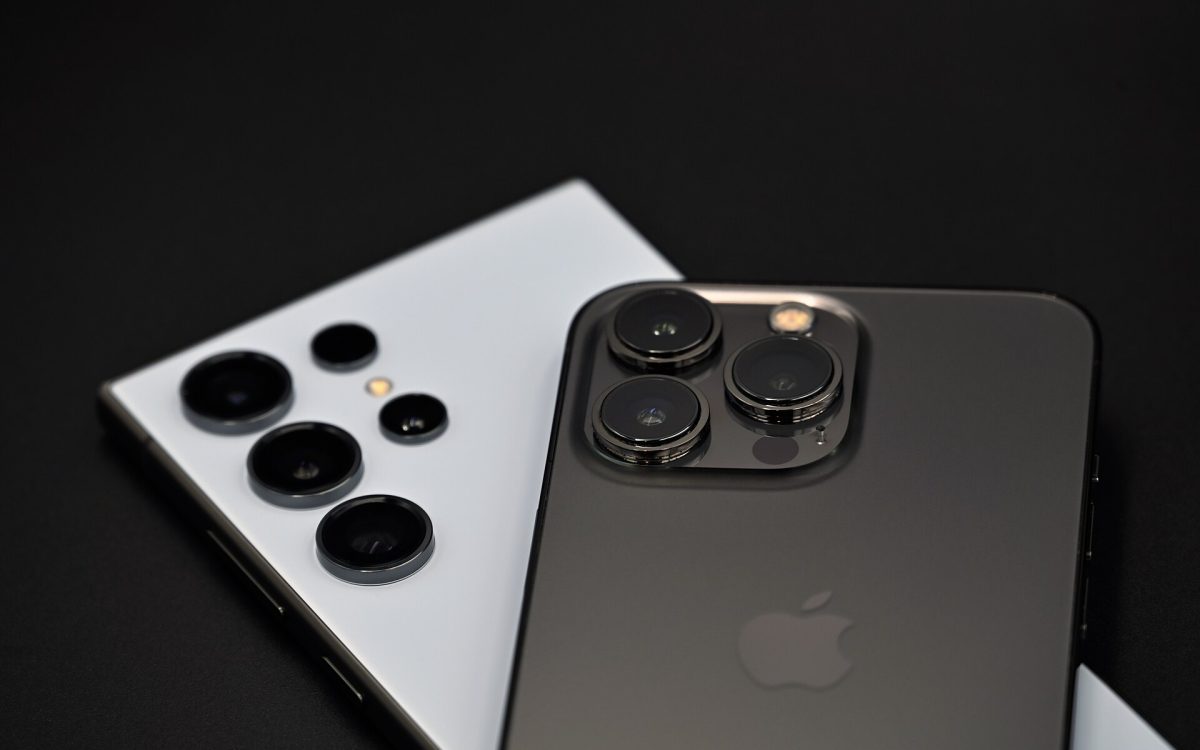
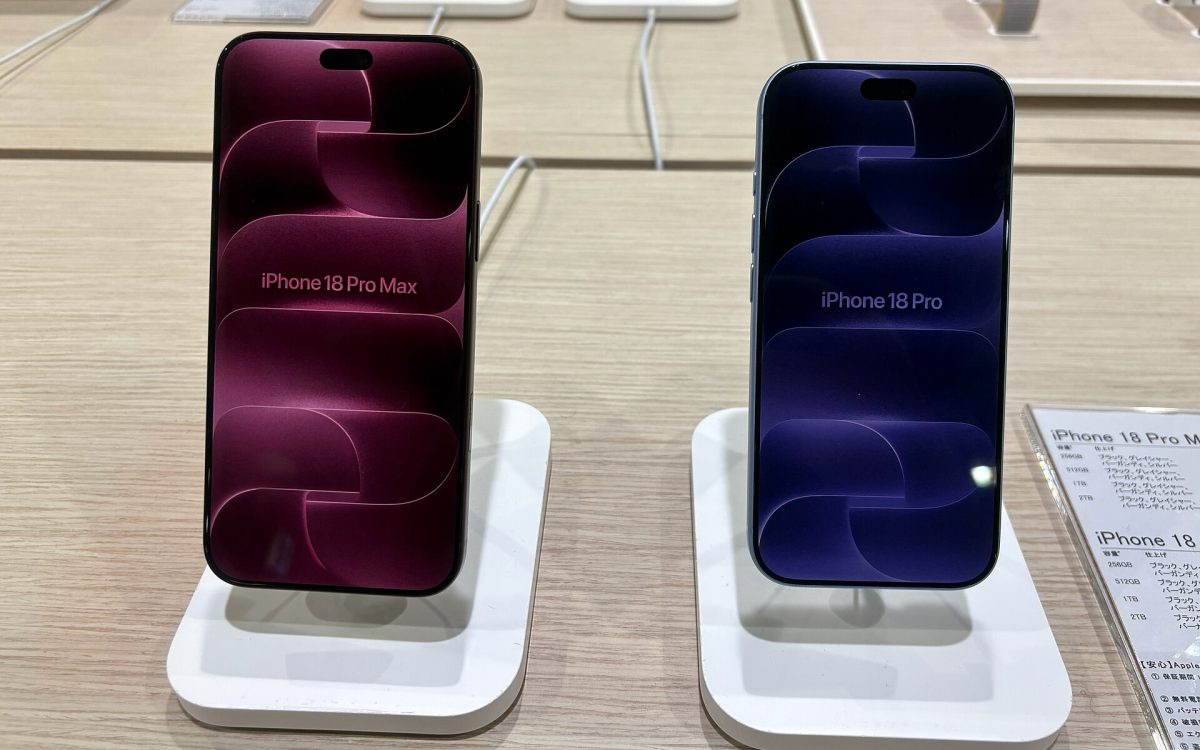
Switching phones is easier than ever, but a few things — especially security apps — still catch people out. Whether you are moving to an iPhone 18 Pro, a Pixel 11 or a Galaxy S26, here is how to move without leaving anything behind.
First: update the new phone
Install the latest software (iOS 27 or Android 17 on the newest models) before you start. Transfer tools work best when both phones are up to date.
iPhone to iPhone
Use Quick Start: place the new iPhone next to the old one and follow the prompts. Apps, settings and data transfer directly or from an iCloud backup.
Android to Android
Google’s setup wizard copies apps, contacts and settings from your old phone or Google backup. Galaxy owners can use Samsung Smart Switch, which also moves Samsung-specific data.
Android to iPhone
Install Apple’s Move to iOS app on the Android phone, then choose to move data from Android while setting up the iPhone.
iPhone to Android
Most Android phones can copy data from an iPhone during setup, either with a cable or with Google’s switching tools. Turn off iMessage before you switch so texts from iPhone users reach your new phone.
Don’t forget
- Authenticator apps: move two-factor codes with the app’s own transfer or export option before you wipe the old phone. This is the step people most often regret skipping.
- Passkeys and passwords: make sure your password manager is synced and signed in on the new phone.
- Messaging apps: WhatsApp and others have their own backup or transfer features.
- eSIM: many new phones, including eSIM-only iPhones, rely on it. Transfer it in the phone’s settings or through your carrier.
- Banking apps: some need to be registered again on a new device.
Keep the old phone untouched for a week. If you find something missing, it is still there.
Cover photo (cropped): SimonWaldherr, CC BY-SA 4.0, via Wikimedia Commons